

Why SMTP Integration Matters
- Deliver transactional emails under your own domain
- Build trust by avoiding “no-reply” or generic platform emails
- Ensure consistent branding across all client communications
- Improve email deliverability through authenticated senders
How to Set Up Your Own SMTP
Manual SMTP Setup To connect your personal or business email SMTP service (like Google Workspace, Outlook, Zoho Mail, etc.)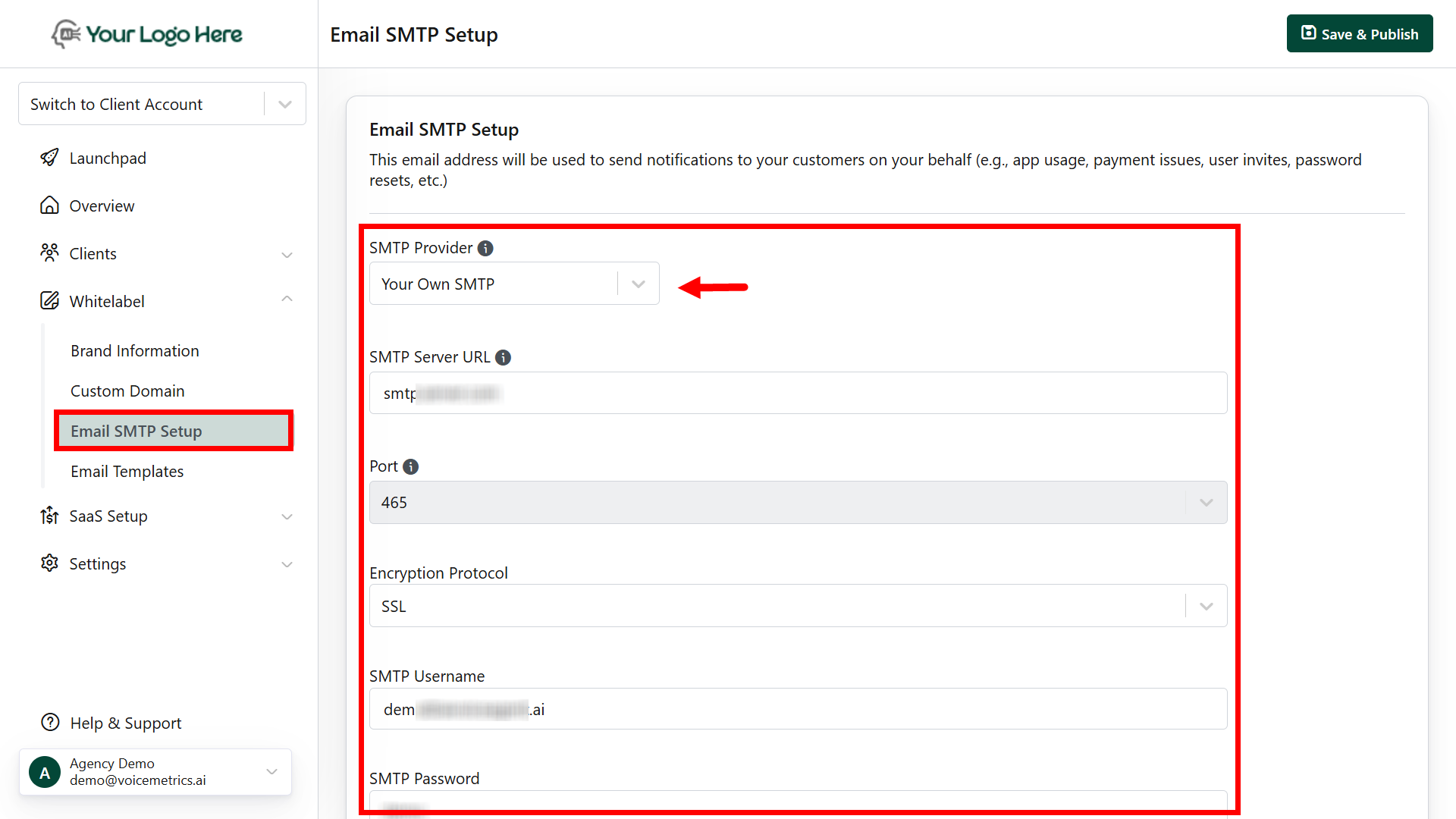
1
Login to Agency Panel
Go to Settings > Email SMTP in the Agency Panel
2
Enter the following
- SMTP Server Address (e.g., smtp.yourdomain.com)
- Port Number (commonly 465 for SSL or 587 for TLS)
- SMTP Username (usually your full email address)
- SMTP Password
- Security Protocol – choose TLS or SSL
- Sender Name – e.g., Your Business Name
- Sender Email – e.g., support@yourdomain.com.
3
Test and Verify
- Click Test Connection to verify that the SMTP is working
- Once the test email is delivered successfully, click Save.
How to Set Up a White-Labelled AWS SMTP
The platform uses AWS SMTP service to send emails, but agencies can verify their own sender email address to ensure emails appear as if they are sent directly from their own brand.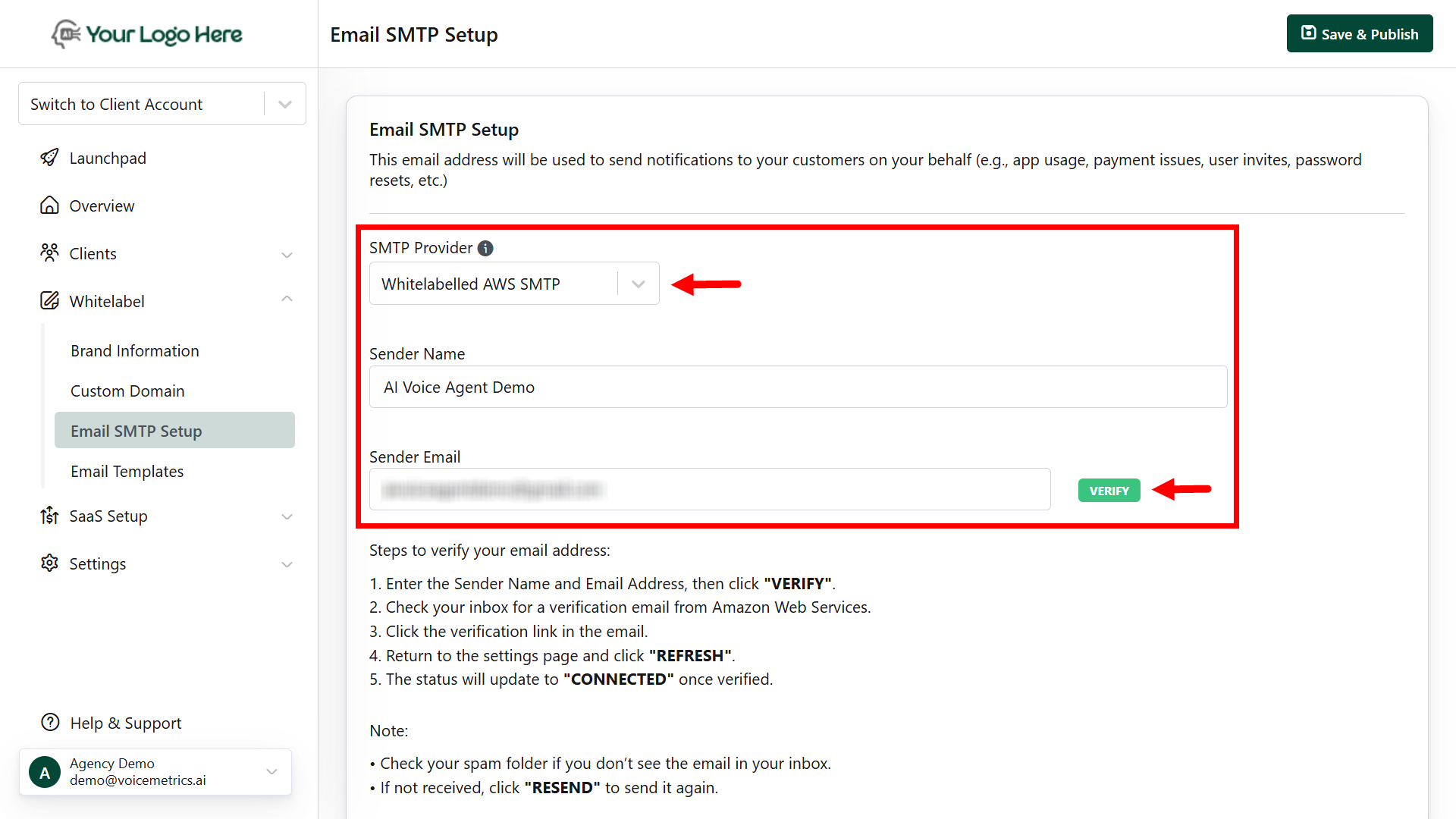
1
Login to Agency Panel
Go to Settings > Email SMTP
2
Enter the Following
- Sender Name (e.g., Your Agency Name)
- Sender Email (e.g., team@yourdomain.com)
3
Test and Verify
- Click Verify
- Open your email inbox and look for a verification email from AWS
- Click the verification link inside the email
4
Return to Agency Panel
- Return to the panel and click Refresh
- Once verified, the status will show “CONNECTED”
Verification may take a few minutes. Check your spam/junk folder if you don’t see the email.
Ensure SPF, DKIM, and DMARC records are correctly configured for your domain to prevent emails from landing in spam
Use a professional business email (e.g., no Gmail or Yahoo addresses)
SMTP configuration is available only in the Agency Panel