> ## Documentation Index
> Fetch the complete documentation index at: https://docs.voicemetrics.ai/llms.txt
> Use this file to discover all available pages before exploring further.
# Add Contact
> Effortlessly add new leads to your database and streamline your sales process with our intuitive lead management system.
### **1. Manual Add**
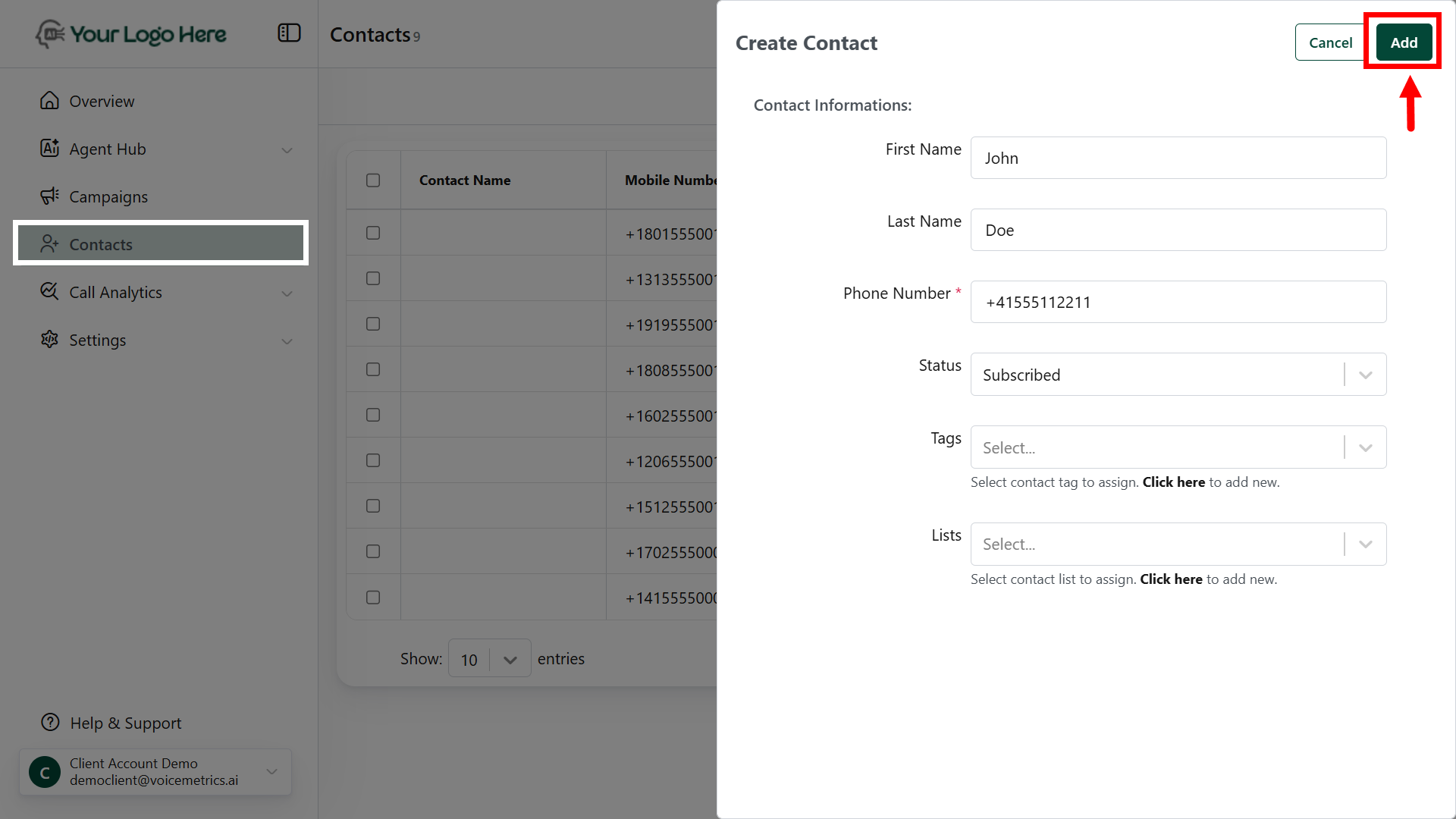
1. Log in as a **Client**.
2. Click **Contacts > Add Contact**.
3. Enter **Name** and **Phone Number** (e.g., John Doe, +14158516395).
4. Click “**Add,**” and it will save.
 ### **2. Bulk Import**
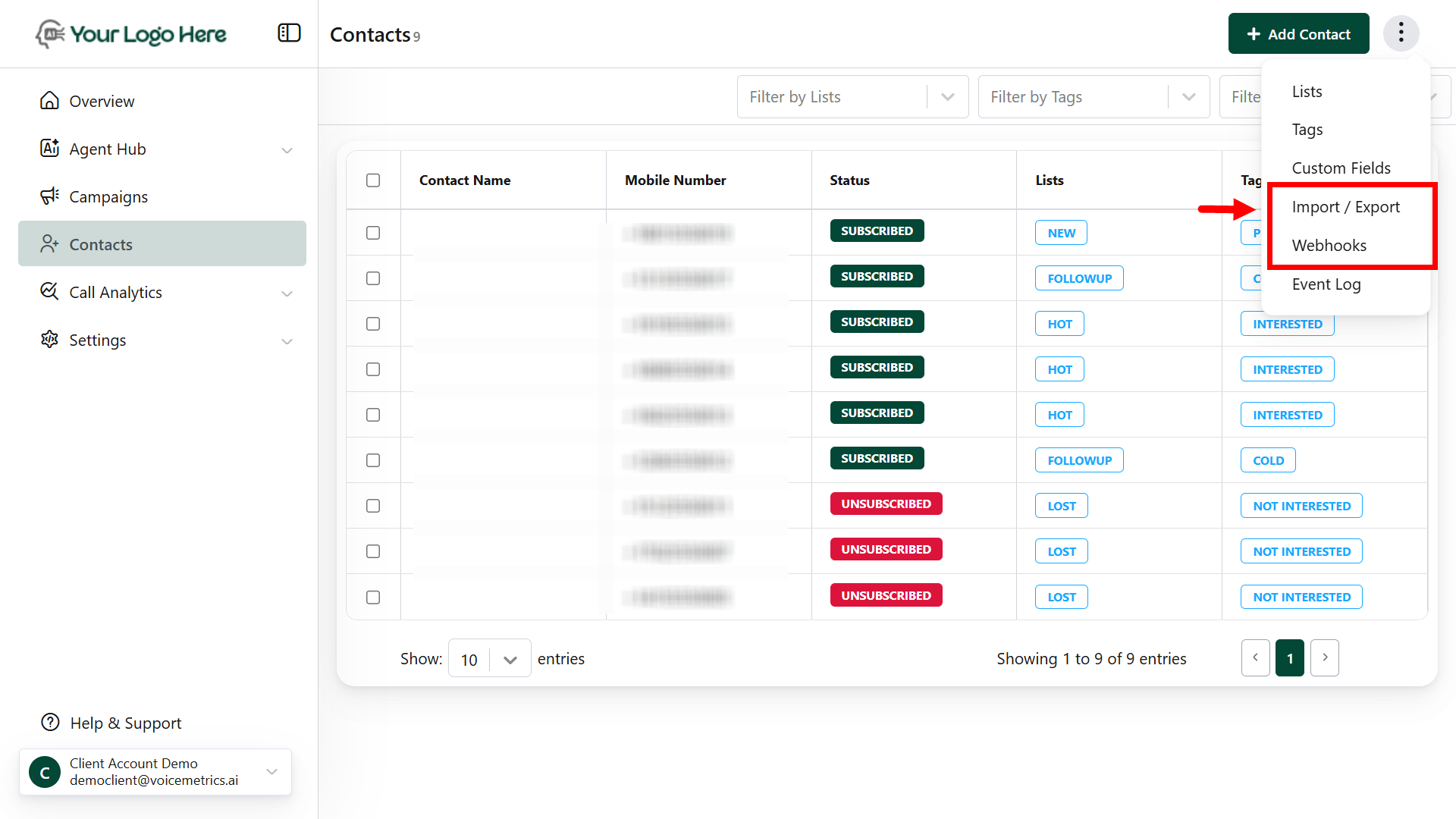
1. Go to Contacts > tap **(⋮) right top> Import/Export** (Right-side Top).
2. Upload a **CSV File** with columns like Name and Phone.
3. Match fields and click **Import**.
Ensure phone numbers use the format +Country Code (e.g., +14158516395).
### **3. Webhook Integration**
1. Create a Webhook under **Contacts > Webhooks** (Right-side Top).
2. Copy the webhook URL and add it to your website or ad platform.
3. Map fields to sync data in real-time.
* **Example:** Use for auto-capturing leads from Google Ads.
Use **View Logs** to troubleshoot and verify incoming lead data.
### **2. Bulk Import**
1. Go to Contacts > tap **(⋮) right top> Import/Export** (Right-side Top).
2. Upload a **CSV File** with columns like Name and Phone.
3. Match fields and click **Import**.
Ensure phone numbers use the format +Country Code (e.g., +14158516395).
### **3. Webhook Integration**
1. Create a Webhook under **Contacts > Webhooks** (Right-side Top).
2. Copy the webhook URL and add it to your website or ad platform.
3. Map fields to sync data in real-time.
* **Example:** Use for auto-capturing leads from Google Ads.
Use **View Logs** to troubleshoot and verify incoming lead data.
 ## **How to Update a Contact**
### **One-by-One Update**
1. **Open the Lead**: Click on the Contact Name (e.g., *John Doe*) to **access the contact.**
2. **Update Fields**: Edit fields like email, phone number, or status
* **Example**: Change status from \*\**New* \*\*to ***Qualified***.
### **Mass Update**
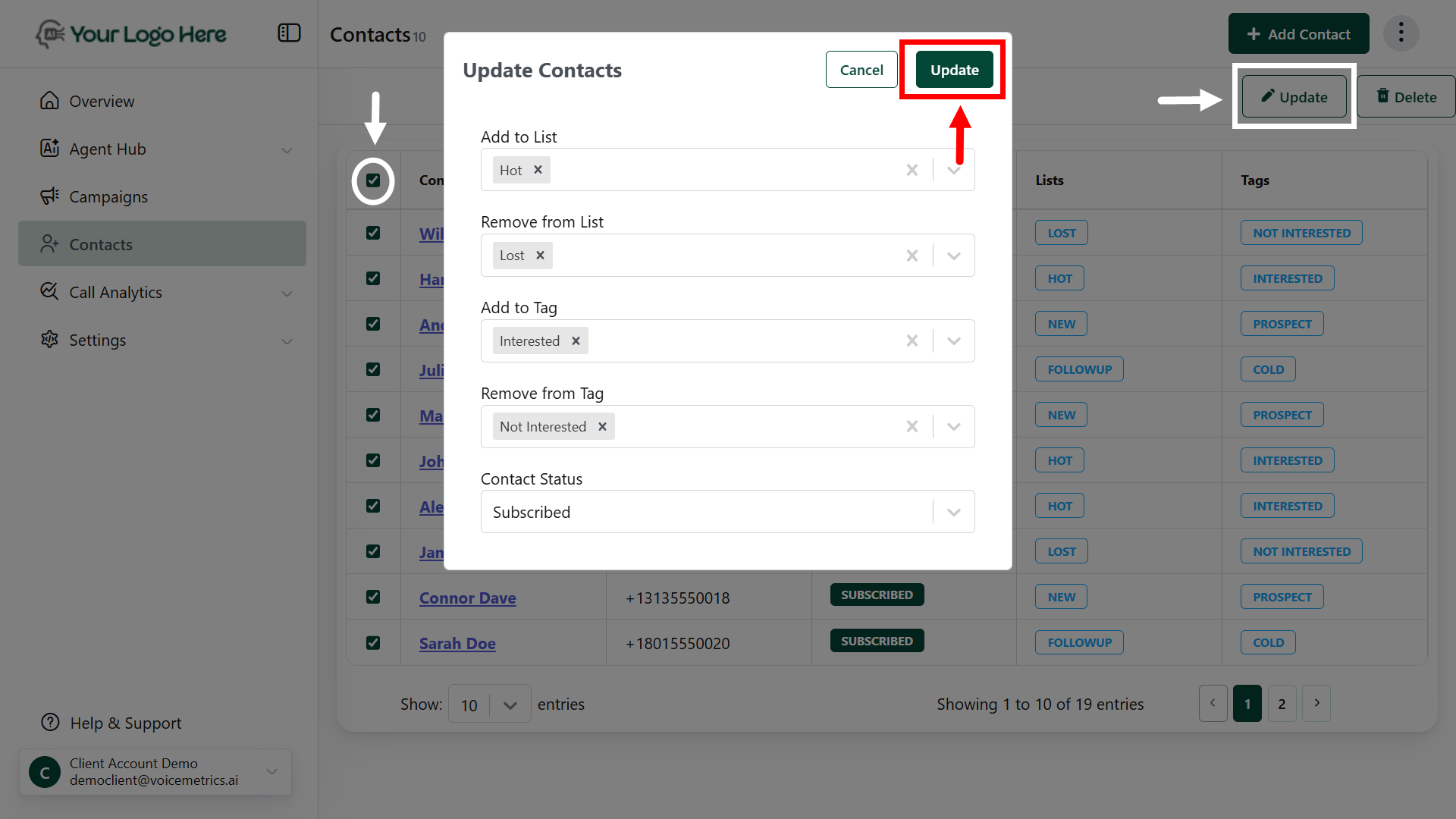
1. **Select Contacts**: **Enable the checkboxes** next to multiple contacts
2. **Apply Updates**: Click the **Update** button (top-right corner).
3. **Choose Fields**: **Add or modify** details like tags or move contacts to a specific list
* **Example**: Change tags from \_Followup \_to *Interested*
* **Example**: Move leads to a specific list as \_Normal Clients *to VIP Clients.*
Use descriptive **tags** and **statuses** for easier filtering and improved lead tracking.
## **How to Update a Contact**
### **One-by-One Update**
1. **Open the Lead**: Click on the Contact Name (e.g., *John Doe*) to **access the contact.**
2. **Update Fields**: Edit fields like email, phone number, or status
* **Example**: Change status from \*\**New* \*\*to ***Qualified***.
### **Mass Update**
1. **Select Contacts**: **Enable the checkboxes** next to multiple contacts
2. **Apply Updates**: Click the **Update** button (top-right corner).
3. **Choose Fields**: **Add or modify** details like tags or move contacts to a specific list
* **Example**: Change tags from \_Followup \_to *Interested*
* **Example**: Move leads to a specific list as \_Normal Clients *to VIP Clients.*
Use descriptive **tags** and **statuses** for easier filtering and improved lead tracking.
 ## **How to Filter or Search a Contact**
### **Types of Filters**
* **Lists**: Organize contacts into categories (e.g., *Premium Clients*, *New Prospects*).
* **Tags**: Use labels like *Interested*, *Follow-Up Needed*.
* **Status**: Filter by lead status (e.g., *Qualified*, *Pending*).
### **Steps to Filter or Search**
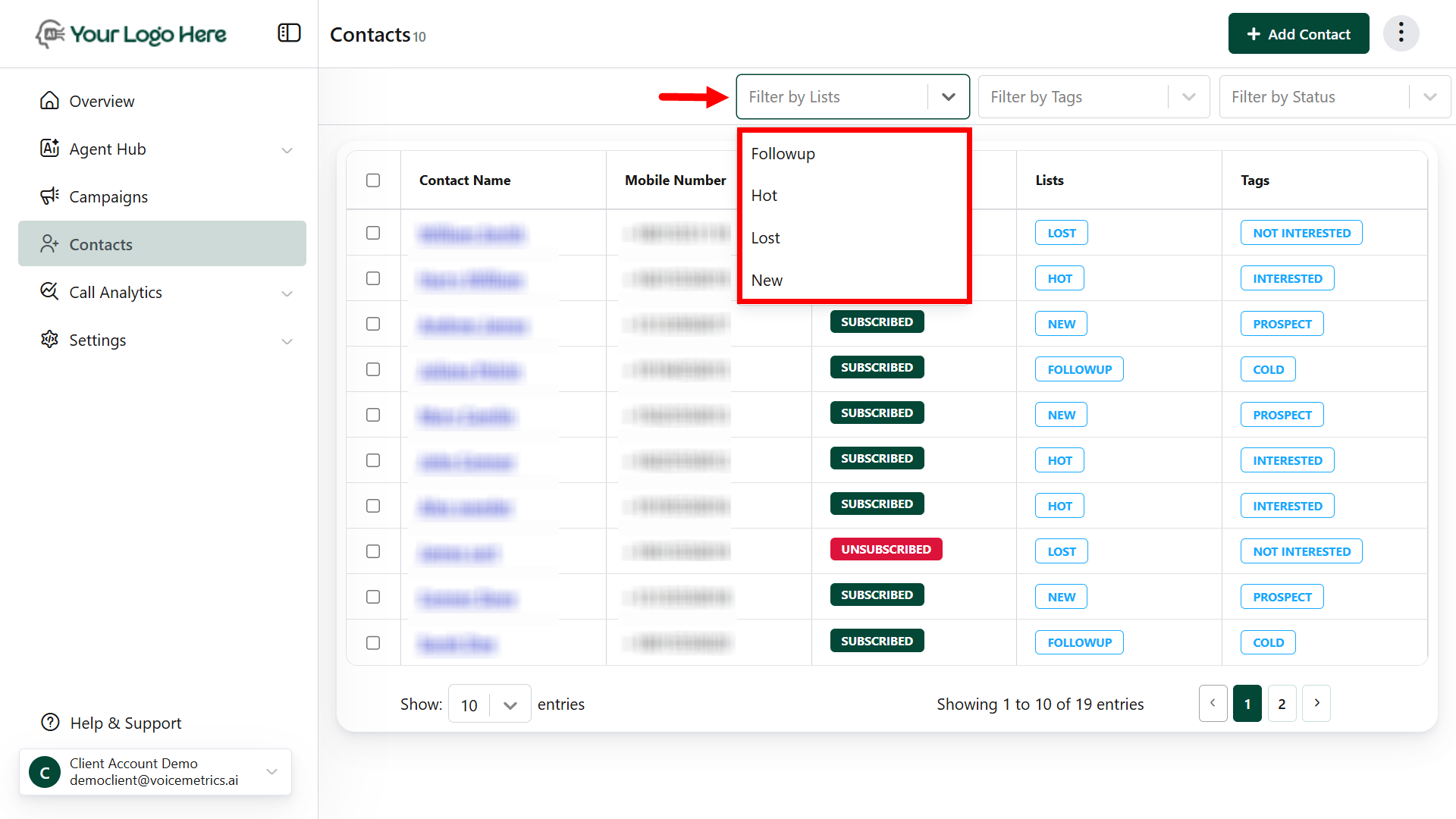
1. **Open the Dropdown**: Navigate to the contacts section and access the filter dropdown.
2. **Select Filter Type**: Choose Lists, Tags, or Status to refine your search.
* **Example**: Select the *New Prospects* list or the *Interested* tag.
3. **View Results**: Leads matching your criteria will be displayed.
**Combine filters** (e.g., *Premium Clients* + *Interested*) for precise results.
## **How to Filter or Search a Contact**
### **Types of Filters**
* **Lists**: Organize contacts into categories (e.g., *Premium Clients*, *New Prospects*).
* **Tags**: Use labels like *Interested*, *Follow-Up Needed*.
* **Status**: Filter by lead status (e.g., *Qualified*, *Pending*).
### **Steps to Filter or Search**
1. **Open the Dropdown**: Navigate to the contacts section and access the filter dropdown.
2. **Select Filter Type**: Choose Lists, Tags, or Status to refine your search.
* **Example**: Select the *New Prospects* list or the *Interested* tag.
3. **View Results**: Leads matching your criteria will be displayed.
**Combine filters** (e.g., *Premium Clients* + *Interested*) for precise results.