> ## Documentation Index
> Fetch the complete documentation index at: https://docs.voicemetrics.ai/llms.txt
> Use this file to discover all available pages before exploring further.
# Email SMTP
> Email SMTP Integration allows you to send platform-generated emails—such as password resets, alerts, and notifications—directly from your own branded email address. This ensures a professional experience where all communications appear to come from your agency or business. All SMTP credentials are securely stored and used only for sending emails on your behalf.
## **Why SMTP Integration Matters**
* Deliver transactional emails under your own domain
* Build trust by avoiding "no-reply" or generic platform emails
* Ensure consistent branding across all client communications
* Improve email deliverability through authenticated senders
## **How to Set Up Your Own SMTP**
**Manual SMTP Setup**
To connect your personal or business email SMTP service (like Google Workspace, Outlook, Zoho Mail, etc.)
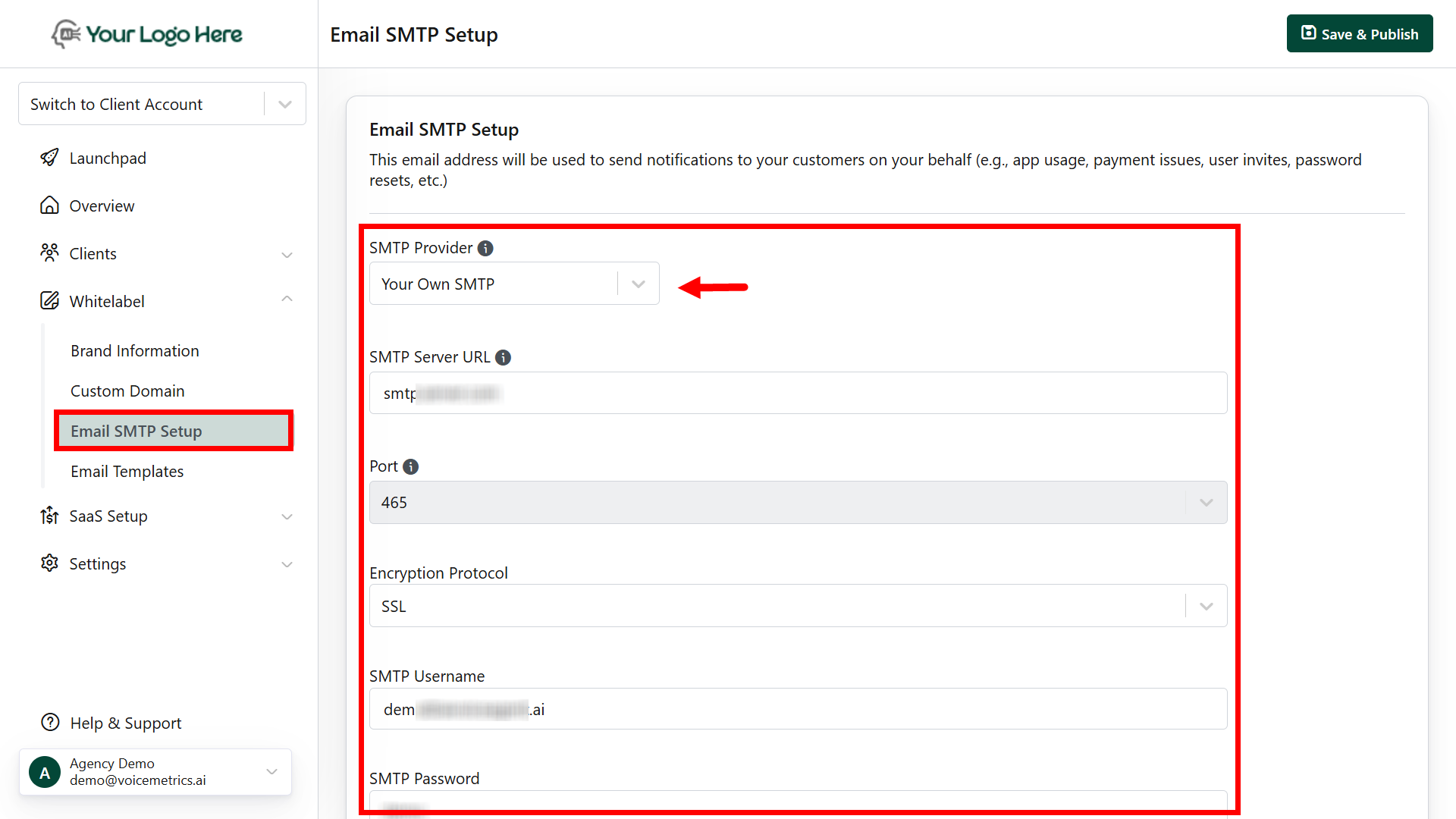 **Steps:**
Go to **Settings > Email SMTP** in the Agency Panel
* **SMTP Server Address** (e.g., smtp.yourdomain.com)
* **Port Number** (commonly 465 for SSL or 587 for TLS)
* **SMTP Username** (usually your full email address)
* **SMTP Password**
* **Security Protocol** – choose **TLS** or **SSL**
* **Sender Name** – e.g., Your Business Name
* **Sender Email** – e.g., [support@yourdomain.com](mailto:support@yourdomain.com).
* Click **Test Connection** to verify that the SMTP is working
* Once the test email is delivered successfully, click **Save.**
Ensure SMTP is enabled on your email account, and check provider settings if the test fails.
## **How to Set Up a White-Labelled AWS SMTP**
The platform uses **AWS SMTP service** to send emails, but agencies can **verify their own sender email address** to ensure emails appear as if they are sent directly from their own brand.
**Steps:**
Go to **Settings > Email SMTP** in the Agency Panel
* **SMTP Server Address** (e.g., smtp.yourdomain.com)
* **Port Number** (commonly 465 for SSL or 587 for TLS)
* **SMTP Username** (usually your full email address)
* **SMTP Password**
* **Security Protocol** – choose **TLS** or **SSL**
* **Sender Name** – e.g., Your Business Name
* **Sender Email** – e.g., [support@yourdomain.com](mailto:support@yourdomain.com).
* Click **Test Connection** to verify that the SMTP is working
* Once the test email is delivered successfully, click **Save.**
Ensure SMTP is enabled on your email account, and check provider settings if the test fails.
## **How to Set Up a White-Labelled AWS SMTP**
The platform uses **AWS SMTP service** to send emails, but agencies can **verify their own sender email address** to ensure emails appear as if they are sent directly from their own brand.
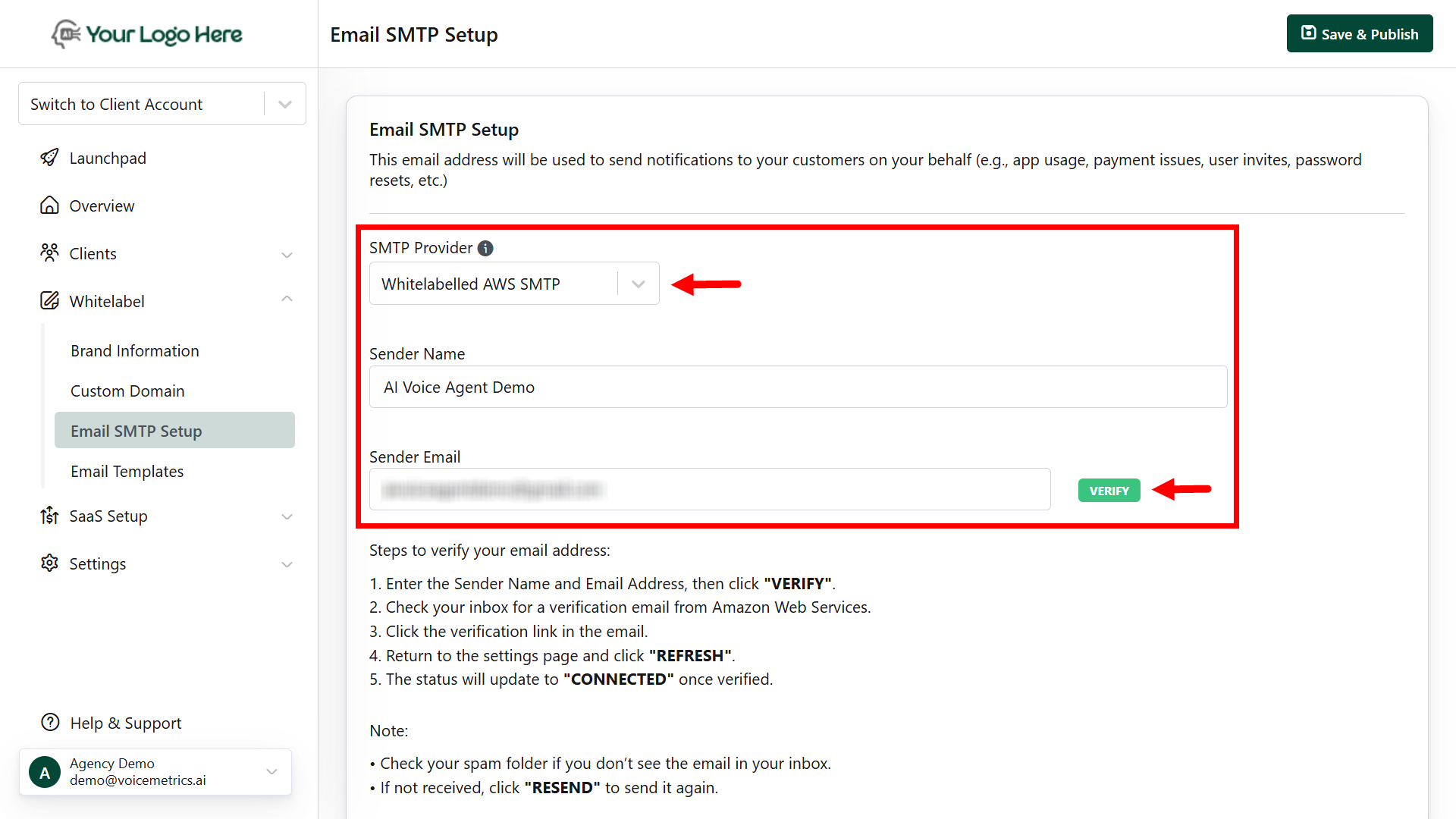 **Steps:**
Go to **Settings > Email SMTP**
* **Sender Name** (e.g., Your Agency Name)
* **Sender Email** (e.g., [team@yourdomain.com](mailto:team@yourdomain.com))
* Click **Verify**
* Open your email inbox and look for a **verification email from AWS**
* Click the verification link inside the email
* Return to the panel and click **Refresh**
* Once verified, the status will show "**CONNECTED**"
Verification may take a few minutes. Check your spam/junk folder if you don't see the email.
**Best Practices**
Ensure SPF, DKIM, and DMARC records are correctly configured for your domain to prevent emails from landing in spam
Use a **professional business email** (e.g., no Gmail or Yahoo addresses)
SMTP configuration is **available only in the Agency Panel**
**Steps:**
Go to **Settings > Email SMTP**
* **Sender Name** (e.g., Your Agency Name)
* **Sender Email** (e.g., [team@yourdomain.com](mailto:team@yourdomain.com))
* Click **Verify**
* Open your email inbox and look for a **verification email from AWS**
* Click the verification link inside the email
* Return to the panel and click **Refresh**
* Once verified, the status will show "**CONNECTED**"
Verification may take a few minutes. Check your spam/junk folder if you don't see the email.
**Best Practices**
Ensure SPF, DKIM, and DMARC records are correctly configured for your domain to prevent emails from landing in spam
Use a **professional business email** (e.g., no Gmail or Yahoo addresses)
SMTP configuration is **available only in the Agency Panel**