> ## Documentation Index
> Fetch the complete documentation index at: https://docs.voicemetrics.ai/llms.txt
> Use this file to discover all available pages before exploring further.
# GHL Integration
> GHL Integration lets Voicemetrics connect seamlessly with your clients’ GoHighLevel (GHL) accounts, enabling branded AI voice workflows fully synced with their CRM — ensuring a smooth, scalable experience for agencies managing multiple clients.
## **Methods to Connect Your GHL Account with Voicemetrics**
* Import clients from GHL
* Sync client automatically
* Verify the client as a sub-account
* Install from Marketplace
* Enable Custom Menu
* Sync CRM Data
## **GHL Client Import**
Ensure the client is a **sub-account** in your GHL Panel before importing.
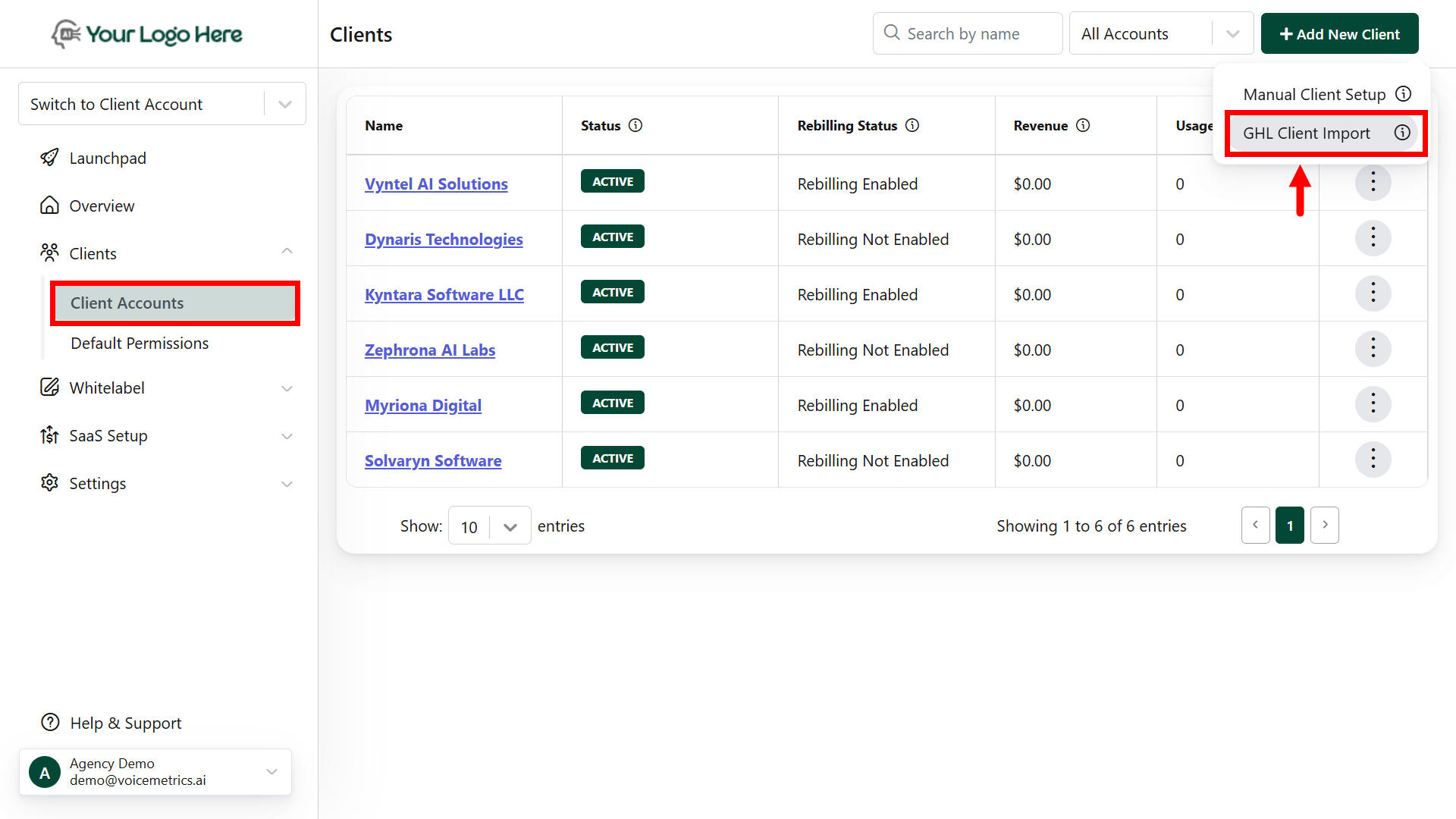
* Log in to your **Voicemetrics Agency Panel**.
* Go to **Clients → Add New Client**.
* Click **GHL Client Import**.
 * Install **GoHighLevel (GHL)** from the Marketplace.
* Enable **“Voicemetrics Call”** and click **Proceed**.
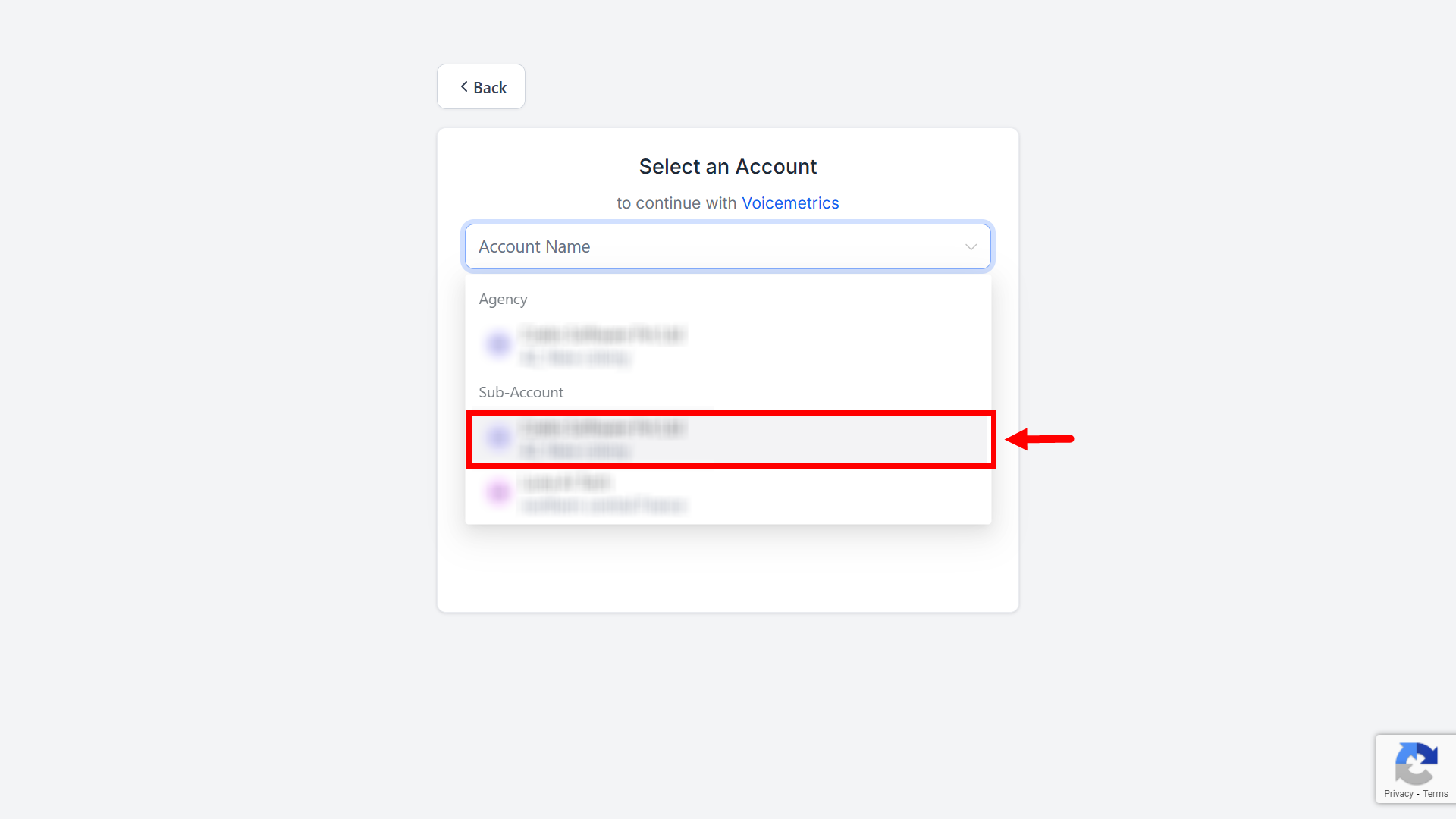
* Select your client (must be listed as a **Sub-account** in GHL).
* Install **GoHighLevel (GHL)** from the Marketplace.
* Enable **“Voicemetrics Call”** and click **Proceed**.
* Select your client (must be listed as a **Sub-account** in GHL).
 ## **GHL Settings**
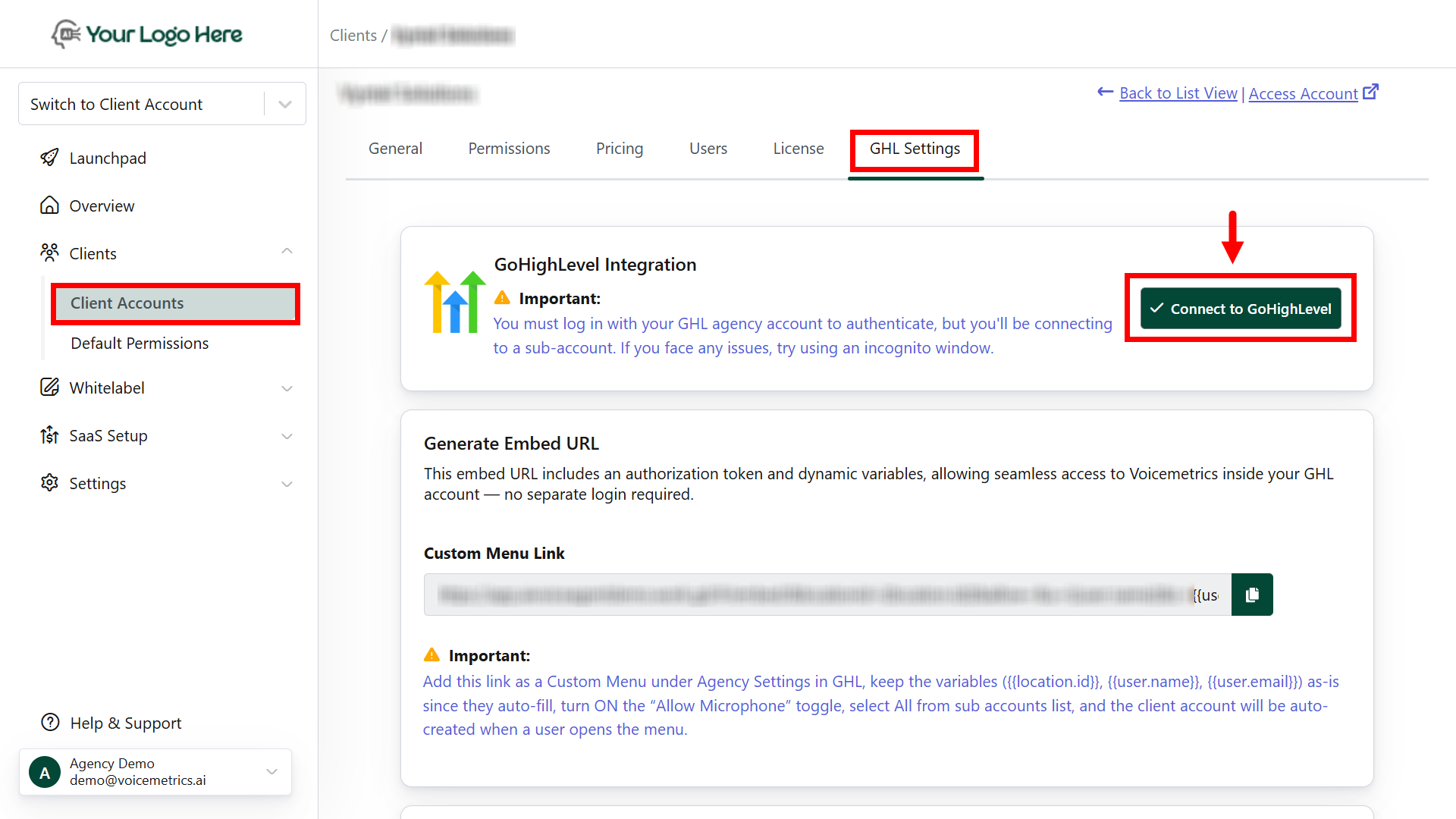
* Log in to your **Voicemetrics Agency account**.
* Go to **Client Accounts → Open desired Client → GHL Settings**.
* Click **Connect to GHL**.
## **GHL Settings**
* Log in to your **Voicemetrics Agency account**.
* Go to **Client Accounts → Open desired Client → GHL Settings**.
* Click **Connect to GHL**.
 * Install **GHL** from the Marketplace.
.png?fit=max&auto=format&n=6idSWEu8E48umMvc&q=85&s=b64e6aa4cea48493a0f89301765c6b40) * Enable **“Voicemetrics Call”** and click **Proceed**.
* Select your client listed as a **Sub-account** in GHL.
Keep both **Voicemetrics** and **GHL** open in two tabs of the same browser for a quick setup.
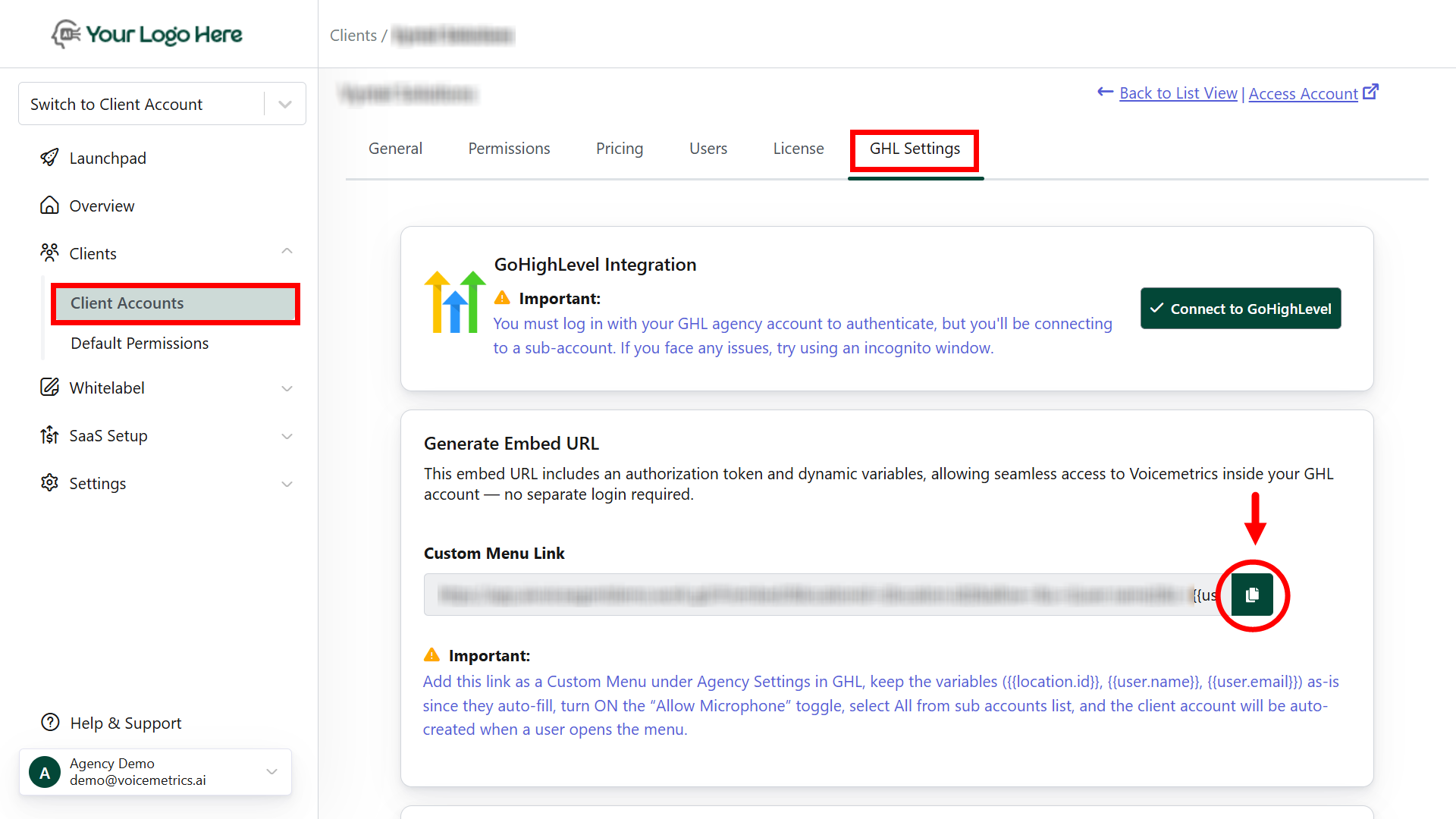
* In the **Voicemetrics Agency account**, go to **Client Accounts → GHL Settings**.
* Copy the **Custom Menu Link URL**
For example: [https://ai.voiceagent.ai/#/embed/\&locationid=\{\{location.id}}\&allow=\&u=\{\{user.name}}\&c=\{\{user.email}}](https://ai.voiceagent.ai/#/embed/\&locationid=\{\{location.id}}\&allow=\&u=\{\{user.name}}\&c=\{\{user.email}})
* Enable **“Voicemetrics Call”** and click **Proceed**.
* Select your client listed as a **Sub-account** in GHL.
Keep both **Voicemetrics** and **GHL** open in two tabs of the same browser for a quick setup.
* In the **Voicemetrics Agency account**, go to **Client Accounts → GHL Settings**.
* Copy the **Custom Menu Link URL**
For example: [https://ai.voiceagent.ai/#/embed/\&locationid=\{\{location.id}}\&allow=\&u=\{\{user.name}}\&c=\{\{user.email}}](https://ai.voiceagent.ai/#/embed/\&locationid=\{\{location.id}}\&allow=\&u=\{\{user.name}}\&c=\{\{user.email}})
 * In **GHL**, go to **Settings → Custom Menu Links**.
* Click **Create New** and:
* Choose an icon and name.
* Paste the copied URL.
* Enable **“Allow Microphone”**.
* Select all sub-accounts.
**All GHL CRM users can now access Voicemetrics inside GHL.**
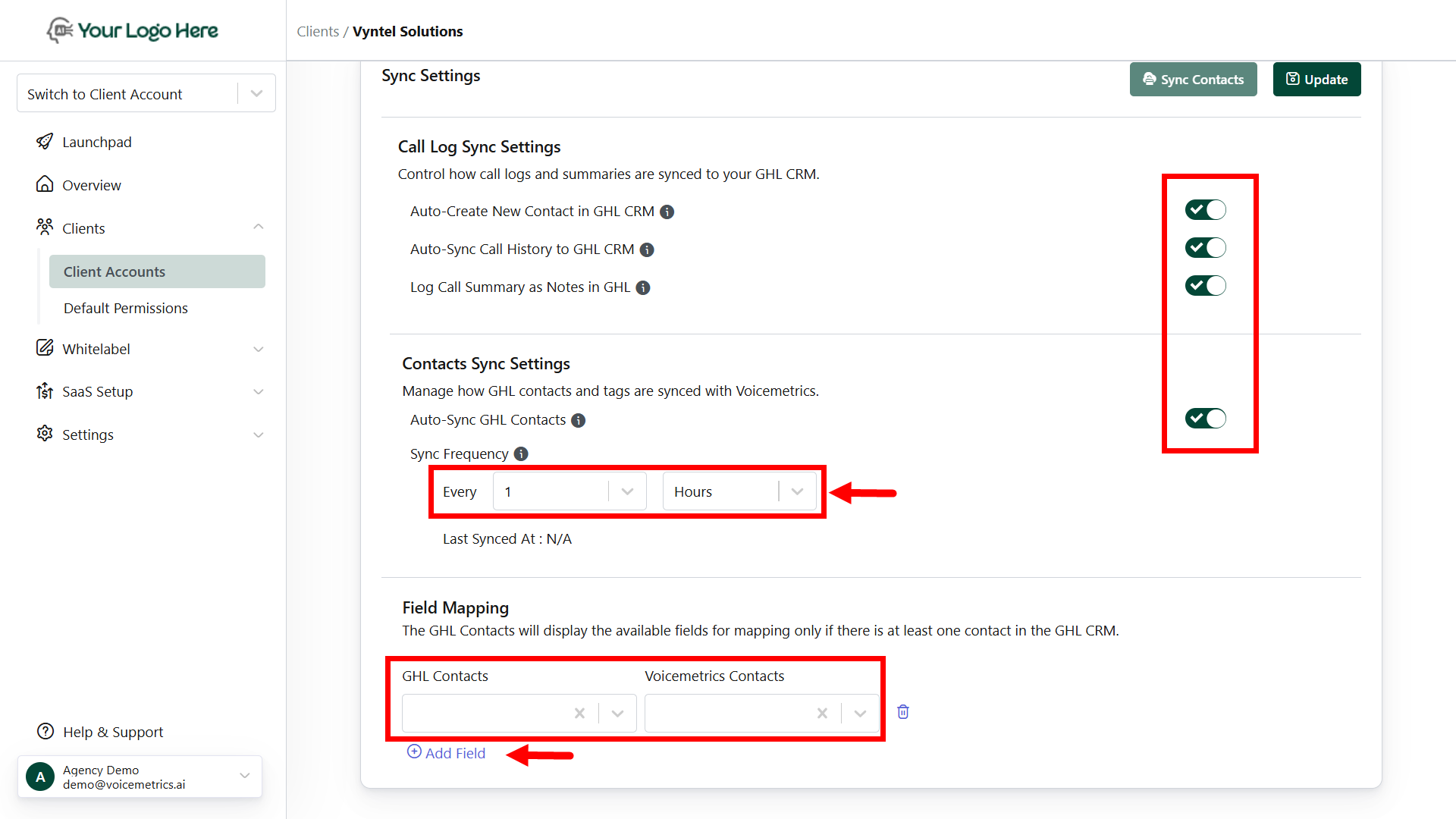
In **Voicemetrics → GHL Settings**, enable:
* Auto-Create New Contact in GHL CRM
* Auto-Sync Call History to GHL CRM
* Log Call Summary as Notes
* Auto-Sync GHL Contacts
You can also:
Set **Sync Frequency** (e.g., every 1 hour)
Mapping options appear only if at least one contact exists in GHL CRM.
* Click **Add Field** to map additional contact fields.
* Ensure accurate field mapping for precise data sync between Voicemetrics and GHL.
* In **GHL**, go to **Settings → Custom Menu Links**.
* Click **Create New** and:
* Choose an icon and name.
* Paste the copied URL.
* Enable **“Allow Microphone”**.
* Select all sub-accounts.
**All GHL CRM users can now access Voicemetrics inside GHL.**
In **Voicemetrics → GHL Settings**, enable:
* Auto-Create New Contact in GHL CRM
* Auto-Sync Call History to GHL CRM
* Log Call Summary as Notes
* Auto-Sync GHL Contacts
You can also:
Set **Sync Frequency** (e.g., every 1 hour)
Mapping options appear only if at least one contact exists in GHL CRM.
* Click **Add Field** to map additional contact fields.
* Ensure accurate field mapping for precise data sync between Voicemetrics and GHL.
 ## **FAQs**
Log in with your **sub-account**. You’ll see the Voicemetrics menu inside.
Yes. A one-time setup of the custom menu link works for all clients in GHL.
You can set your preferred sync frequency (e.g., every 1 hour).
Field mapping appears only after at least one contact exists in GHL.
Turn on **Auto-Sync Call History** and **Log Call Summary as Notes**.
## **FAQs**
Log in with your **sub-account**. You’ll see the Voicemetrics menu inside.
Yes. A one-time setup of the custom menu link works for all clients in GHL.
You can set your preferred sync frequency (e.g., every 1 hour).
Field mapping appears only after at least one contact exists in GHL.
Turn on **Auto-Sync Call History** and **Log Call Summary as Notes**.